Linux permissions are one of the first concepts every Linux user encounters and one of the last concepts many truly understand.
Beginners see them when trying to execute a script.
Developers encounter them while working with Docker volumes and application files.
DevOps engineers deal with them in servers, CI/CD pipelines, containers, and cloud environments.
Despite being a fundamental part of Linux, permissions are often overlooked during day-to-day work. When we're focused on deploying applications, configuring servers, or troubleshooting larger problems, it's easy to miss a small permission setting. As a result, permission-related issues continue to be a common cause of deployment failures, configuration errors, and unexpected security risks.
Understanding Linux permissions isn't just about learning commands like chmod or chown. It's about understanding how Linux decides who can access what, and why that decision matters.
Let's start with the question most people ask after seeing their first permission error:
Why does Linux have permissions at all?
Understanding the Basics of Linux Permissions
Before diving into commands like chmod and chown, it's important to understand how Linux permissions work.
Every file and directory in Linux has an owner and a group associated with it. When a user or application tries to access a file, Linux checks whether they have the required permissions to read, write, or execute it.
Think of it like accessing a secured office. Just because you can see the building doesn't mean you can enter every room. Your access depends on the permissions assigned to you.
Linux follows the same principle. If the required permissions are available, access is granted. If not, you'll encounter the familiar:
Permission denied
Understanding this simple concept makes it much easier to troubleshoot permission issues and use Linux systems securely.
Understanding the Permission Strings
Run ls -l on any directory and you'll see something like this:
-rwxr-xr-- 1 poosu developers 4096 Jun 10 deploy.shdrwxr-xr-x 2 poosu developers 4096 Jun 10 scripts/
At first glance, the first column in the example above may seem like a random combination of characters. However, it is actually made up of four parts that define the file type and its access permissions in Linux.
- rwx r-x r--[type] [owner] [group] [others]
The first character tells you what kind of thing this is. A dash (-) means it's a regular file. A d means it's a directory. An l means it's a symbolic link.
The next nine characters define the permission for three different categories of users. Each group answers the same question for a different audience: what can the owner do, what can the group do, what can everyone else do.
rwx→ owner (u) — the user who created or owns the filer-x→ group (g) — users who belong to the file's groupr--→ others (o) — everyone else on the system
Think of each position as a simple yes-or-no check. A letter means "yes, this permission is allowed," while a dash (-) means "no, this permission is denied."
- r — read. Can you look at the contents?
- w — write. Can you modify or delete?
- x — execute. Can you run it?
One thing that often trips people up is that execute permission (x) behaves differently for files and directories.
- For a file, execute permission means you can run it as a program or script.
- For a directory, execute permission means you can enter it and access the files inside it.
Even if a directory has read permission, you still need execute permission to cd into it or open the files it contains. Read permission lets you see the list of files, while execute permission lets you actually access them.
Real Scenario: The Nginx 403 That Has Nothing To Do With The File
A developer builds a website and stores it in their home directory:
/home/poosu/mysite.They set up Nginx to serve from that path. They check the file permissions on
index.html— it's 644, perfectly fine for a web server to read.But every visitor gets a 403 Forbidden.
The problem isn't the file. The problem is the directory above it.
Home directories on Linux are typically
700— which meansdrwx------. Only the owner can enter. Nginx runs aswww-data. When Nginx tries to serve a file, it has to traverse the entire path to get there. It starts at/home/poosu— and immediately hits a wall. The kernel checks: iswww-datathe owner? No. Is it in poosu's group? No. Can others enter? Zero permissions. The kernel stops right there.It never even looks at
index.html.The fix:
bashsudo chmod o+x /home/poosuOr better, move the site to
/var/www/htmlwhere Nginx expects to find things.
Understanding the Numeric System Behind Linux Permissions
You've seen numbers like 755, 644, 777 everywhere. They look like arbitrary codes. They're not — they're just addition.
Each permission has a value:
- Read = 4
- Write = 2
- Execute = 1
To get the permission number for a group, you add the values together. Want read, write, and execute? 4+2+1 = 7. Want read and execute only? 4+1 = 5. Want read only? 4.
Then you write three digits in a row — one for owner, one for group, one for others.
So 755 means:
Owner gets 7 → 4+2+1 = rwx (full control)Group gets 5 → 4+1 = r-x (read and enter, no write)Others gets 5 → 4+1 = r-x (same as group)
And 644 means:
Owner gets 6 → 4+2 = rw- (read and write, no execute)Group gets 4 → 4 = r-- (read only)Others gets 4 → 4 = r-- (read only)
Here are the six values you will use in 95% of real situations:
| Value | Symbolic | Use it for |
|---|---|---|
| 777 | rwxrwxrwx | Never. This is the lazy fix. |
| 755 | rwxr-xr-x | Directories, scripts, executables |
| 644 | rw-r--r-- | Regular files, web content |
| 700 | rwx------ | SSH directory, private scripts |
| 600 | rw------- | Private keys, secrets, credentials |
| 400 | r-------- | Read-only configs, key backups |
Real Scenario: The chmod -R 755 That Breaks the PHP Site
Someone recursively applies 755 to
/var/wwwwith a single command:bashsudo chmod -R 755 /var/wwwEvery PHP file now has the execute bit set. PHP itself doesn't care — but security scanners flag it, WAFs block execution on some setups, and config files with database passwords are now executable by group and others.
The correct pattern is two commands, not one:
bashfind /var/www -type d -exec chmod 755 {} +find /var/www -type f -exec chmod 644 {} +The first one sets 755 on directories only. The second one sets 644 on files only. No unnecessary execute bits, no security exposure.
Not Every Permission Problem Is a chmod Problem
Understanding File Ownership and chown
File permissions are only part of the story. If the wrong user owns the file, the permissions won't work the way you expect. Think of it this way: chmod decides what actions are allowed, while chown decides who gets those permissions.
The basic syntax:
chown user:group filenamechown poosu:developers deploy.sh # sets owner to poosu, group to developerschown -R www-data:www-data /var/www # recursive, for directories
One simple rule that many Linux tutorials don't mention: change ownership before changing permissions. On some systems, updating the file owner can remove special permissions like SUID and SGID. If you run chmod first and chown later, you may unknowingly reverse part of your configuration.
# Step 1: set the right ownerchown -R jenkins:jenkins /var/build/output# Step 2: set the right permissionschmod -R 755 /var/build/output
Real Scenario: The Jenkins Artifact Directory Problem
An admin creates
/var/build/outputas root. Jenkins runs as thejenkinssystem user. The pipeline tries to write build artifacts there:bashmkdir -p /var/build/output/reports && cp target/*.jar /var/build/output/Permission denied.
The directory permissions are 755. Everyone can read and execute. But write is owner-only, and owner is
root. Jenkins isn't root.The correct fix:
bashsudo chown -R jenkins:jenkins /var/build/outputOne command. Pipeline works. Instead, most teams reach for
chmod 777and never revisit it. Six months later it shows up in a security audit as a world-writable directory on a production server.
How Linux Decides Whether to Allow Access
Here's an insight that many Linux tutorials skip: the Linux kernel doesn't merge permissions or average them out. When a process tries to access a file, Linux checks permissions in a specific order and stops as soon as it finds a match. Understanding this simple process can help you troubleshoot many "Permission Denied" errors with confidence.
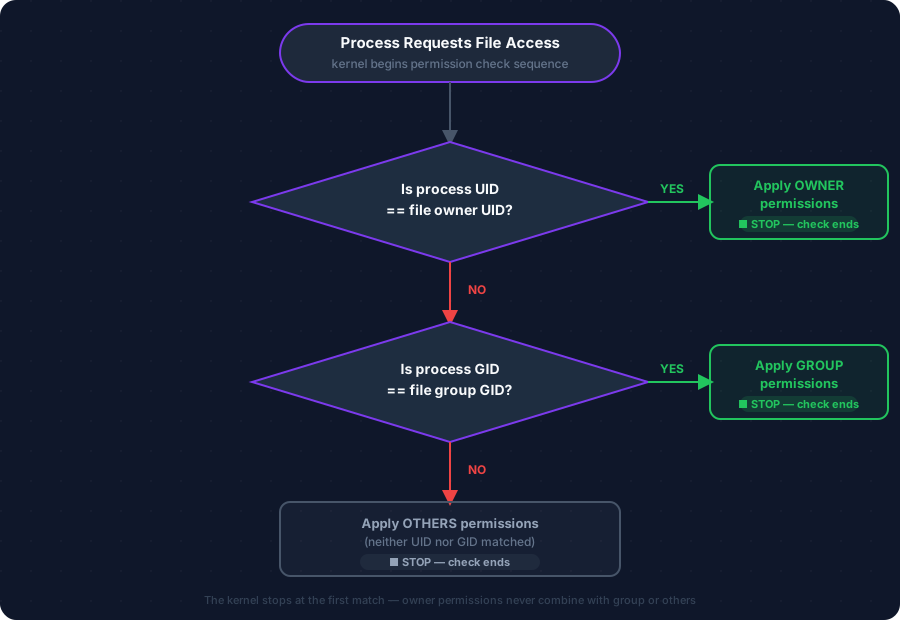
Critical implication: if you are the owner of a file, the group and others permissions are completely irrelevant to you. The kernel already stopped at Check 1.
This is why a file set to ---rwxrwx (007) will deny access to its own owner — the kernel hits the owner check first, applies the empty owner permissions (---), and stops. The group and others permissions never get evaluated.
Real Scenario: The Counterintuitive Owner Lockout
A developer sets a file to
---rwxrwx(007) thinking "everyone can access this." They then try to read it themselves — permission denied.They own the file. The kernel hits Check 1, sees they are the owner, applies the owner permissions (
---), and stops. The group and others permissions (rwx) never get evaluated. The developer locked themselves out of their own file.To verify who you are and what a file expects:
bashid # shows your UID, GID, and all group membershipsls -ln filename # shows the numeric UID and GID of the file
How Linux Permissions Protect SSH Keys, Secrets and Sensitive Files
One of the most important things to understand is that some tools treat Linux permissions as a security requirement, not just a recommendation. The most common example is SSH.
SSH includes a security feature called StrictModes, which is enabled by default. Before SSH even attempts to authenticate you, it checks the permissions of your SSH key files.
If your private key is too accessible — for example, if it can be read by your group or other users — SSH assumes the key is insecure and refuses to use it. To many beginners, this can be confusing because SSH often returns a generic authentication error without clearly pointing to the real problem: incorrect file permissions.
This behavior isn't a bug. It's a security measure designed to protect your credentials from being exposed to other users on the system.
To use SSH keys safely, make sure they have the correct permissions:
chmod 700 ~/.ssh # the .ssh directory itselfchmod 600 ~/.ssh/authorized_keys # the list of trusted public keyschmod 600 ~/.ssh/id_rsa # your private keychmod 644 ~/.ssh/id_rsa.pub # your public key (can be world-readable)
The principle behind this: give the minimum access needed for the job. Nothing more. A private key that anyone on the system can read is no longer private.
Real Scenario: The EC2 Lockout That Ruins a Friday Afternoon
A developer copies their
.sshfolder to a new machine usingcp -r. The copy command preserves permissions from the source — which happened to be a shared server whereauthorized_keyswas group-readable (664).They SSH into their EC2 instance. Permission denied (publickey). The key is correct. The
sshd_configis correct. The key content is right.SSH sees 664 on
authorized_keys, considers it insecure, rejects it silently, gives no explanation.The fix:
bashchmod 600 ~/.ssh/authorized_keysOne command. Immediate access. The error message told them nothing. Knowing the rule told them everything.
To check what SSH is actually doing when it rejects you:
bashssh -vvv user@host # verbose mode — shows exactly what SSH is checking
When the Permissions Look Right, but Access Is Still Denied
One thing that surprises even experienced engineers is this:
chmod isn't always the complete solution to a Linux permission problem.
You've checked the permissions, confirmed the ownership, and maybe even tried chmod 777. Yet, you're still greeted with a frustrating "Permission Denied" error.
In many enterprise and cloud environments, there's another security layer making the decision.
On distributions such as RHEL, CentOS, AlmaLinux, and Rocky Linux, that layer is called SELinux (Security-Enhanced Linux). SELinux uses its own security labels, known as contexts, to determine whether access should be allowed. These checks happen independently of traditional Unix permissions.
This means that even if a file is set to 777 and owned by the correct user, SELinux can still deny access.
On Ubuntu and Debian-based systems, a similar role is performed by AppArmor, which applies its own security policies to restrict what applications can do.
If you've verified your chmod and chown settings but access is still denied, don't spend hours chasing the wrong problem. Start by checking whether SELinux is involved.
Two commands every Linux engineer should know:
getenforce # Checks whether SELinux is active.# Returns: Enforcing, Permissive, or Disabledls -Z /path/to/file # Displays the SELinux security context of a file.
If SELinux is running in Enforcing mode and your file permissions and ownership look correct, the SELinux context might be incorrect:
restorecon -Rv /var/www/uploads # Restores the default SELinux context.ausearch -m avc -ts recent # Shows recent SELinux denial logs.
Real Scenario: The Nginx Server That Ignores Correct Permissions
An engineer sets
/var/www/uploadsto 755, owned bywww-data. Nginx still returns 403. They check permissions three times. Everything looks right.An hour later someone mentions SELinux.
getenforcereturnsEnforcing.ls -Z /var/www/uploadsshows the wrong context — it was labelled as a home directory context instead of a web content context.The fix:
bashsudo restorecon -Rv /var/www/uploadsFive seconds to run. Problem solved. The chmod was never the issue. SELinux was the hidden layer the whole time.
The 5 Linux Permission Rules to Carry Forward
You don't have to memorize every chmod command or permission number from this article. But if you take away these five key rules, Linux permissions will stop feeling confusing and start making sense.
-
The kernel sees UIDs and GIDs, not usernames — when something breaks, think in numbers first.
-
The kernel checks owner, then group, then others — and stops at the first match. Being the owner means group and others permissions don't apply to you.
-
Permissions mean nothing without correct ownership — always fix
chownbeforechmod. -
chmod -R 755on a file tree is almost always wrong — usefindto apply 755 to directories and 644 to files separately. -
If chmod and chown are correct and it still doesn't work — check SELinux with
getenforcebefore you waste an hour.
The next time you hit a permission denied error, you won't need to guess. You'll know exactly where to look.
Quick Command Reference
# Check who you areid # your UID, GID, and all group membershipswhoami # just your username# Check file ownership and permissionsls -l filename # symbolic permissions + ownerls -ln filename # numeric UID/GID instead of namesls -ld /path/to/directory # check the directory itself, not its contentsstat filename # full metadata including numeric permissions# Change permissionschmod 644 filename # owner rw, group r, others rchmod 755 directory/ # owner rwx, group rx, others rxchmod +x script.sh # add execute for everyonefind . -type d -exec chmod 755 {} + # directories onlyfind . -type f -exec chmod 644 {} + # files only# Change ownershipchown user:group filename # change owner and groupchown -R www-data:www-data /var/www # recursive# SSH permissions (required)chmod 700 ~/.sshchmod 600 ~/.ssh/authorized_keyschmod 600 ~/.ssh/id_rsa# SELinuxgetenforce # check if SELinux is activels -Z /path/to/file # show SELinux contextrestorecon -Rv /path/to/dir # restore correct SELinux contextausearch -m avc -ts recent # view SELinux denial logs